
Users and permissions: several agents on the same number
Each person on the team signs in to Vimel with their own user, and several people can answer through the company's same WhatsApp instances. Someone with the Usuário (user) role reaches what their user record sets: which menus, which instances, which funnels and, in each area of the CRM, whether they see all the data or only what is assigned to them. Someone with the Administrador de Cliente (client administrator) role has full access.
A new user starts with everything allowed. Restricting is a choice, made user by user.
The product interface is in Portuguese, so the screenshots below are too. The labels are given here in both.
Where it is
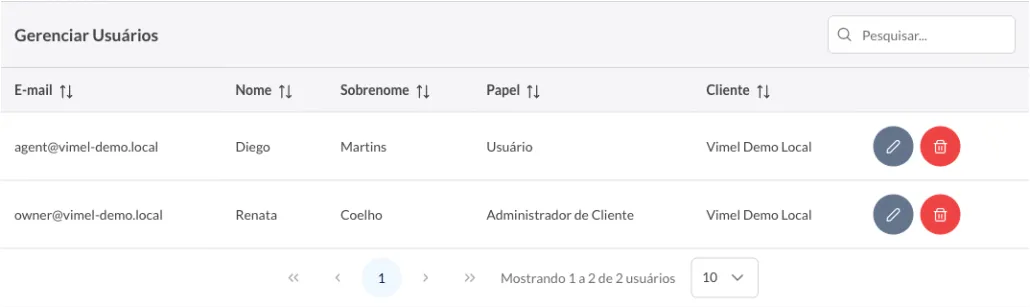
Users live under Configurações (settings), in the Usuários (users) menu, which opens the Gerenciar Usuários (manage users) screen. The table shows each person's e-mail, first name, last name, role and client, and the Pesquisar... (search) box filters the list. Each row has a button to edit the user and another to delete them.
Creating a user
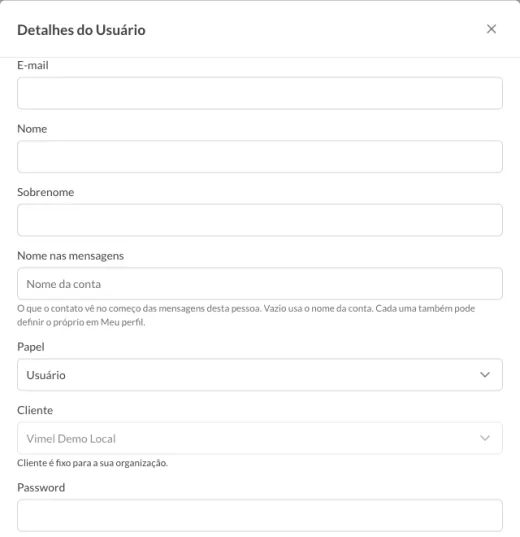
The Novo (new) button opens the Detalhes do Usuário (user details) dialog. The first fields identify the person:
- E-mail, Nome (first name) and Sobrenome (last name).
- Nome nas mensagens (name in messages): what the contact sees at the start of this person's messages. Left empty, the account name is used, and each person can also set their own under Meu perfil (my profile). The name only shows in messages with the signature switched on, and it comes switched off: the Usar assinatura nas mensagens (use signature in messages) switch is under Config. CRM, on the Horários e Metas (hours and targets) tab. With several agents on the same number, this name is how the contact knows who is talking.
- Papel (role), with two options: Administrador de Cliente (client administrator) and Usuário (user). A new user starts as Usuário.
- Cliente (client), which comes filled in and cannot change: it is fixed to your organization.
- Password, the sign-in password.
To change an existing user, use the edit button on their row. The dialog is the same, and the password field becomes Password (deixe em branco para manter a senha atual) (leave blank to keep the current password): left blank, the current password stays valid.
What each person can reach in the CRM
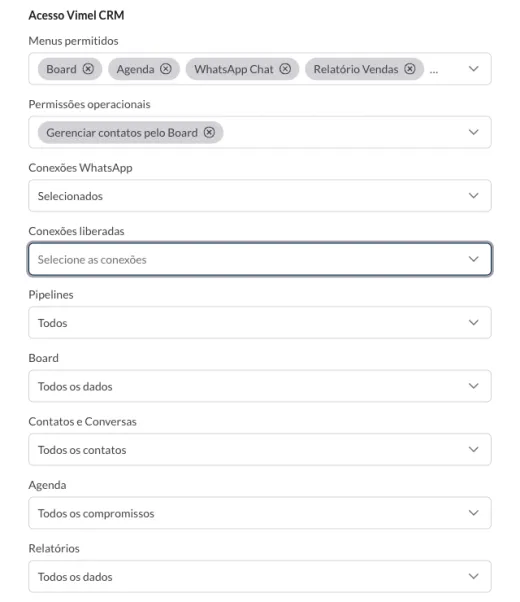
Below the person's details, the Acesso Vimel CRM (Vimel CRM access) section holds the permissions. It only appears when the role is Usuário: with Administrador de Cliente, the dialog notes that access is full, and there is nothing to restrict.
Menus permitidos (allowed menus) lists the menus that are open to the person: Board, Agenda (calendar), WhatsApp Chat, Relatório Vendas (sales report), Relatório Atendimento (service report), Relatório (report), Contatos (contacts), Pós-venda (after-sales) and Marketing. On a new user, all of them come selected.
Permissões operacionais (operational permissions) has the option Gerenciar contatos pelo Board (manage contacts from the Board), also selected on a new user. It allows looking up a contact in an instance's list and registering a new contact, as when starting a new conversation or creating a case. Reading and editing the details of a case's contact does not depend on it: anyone with Board, WhatsApp Chat or Contatos can already do that.
Conexões WhatsApp (WhatsApp connections) decides which instances the person answers through. With Todos (all), they reach all of them. With Selecionados (selected), the Conexões liberadas (allowed connections) field appears, where you choose the instances.
Pipelines works the same way for funnels: Todos or Selecionados.
Finally, four areas each have their own reach:
- Board: Todos os dados (all data) or Apenas atribuídos ao usuário (only assigned to the user).
- Contatos e Conversas (contacts and conversations): Todos os contatos (all contacts) or Apenas os contatos sob responsabilidade do usuário (only the contacts the user is responsible for).
- Agenda: Todos os compromissos (all appointments) or Só os próprios; os demais como ocupado (only their own; the others as busy).
- Relatórios (reports): Todos os dados or Apenas atribuídos ao usuário.
On a new user, all four come set to the first option, the one that shows everything.
A team on the same number
For several people to answer through the same number, each one gets their own user, with that number's instance within reach under Conexões WhatsApp: with Todos or, if the person should answer only through it, with Selecionados and that instance in Conexões liberadas.
Someone who should look after only their own portfolio gets Apenas os contatos sob responsabilidade do usuário under Contatos e Conversas, and Apenas atribuídos ao usuário under Board and Relatórios. Whoever coordinates the team keeps the first option in each area, and sees everyone's work.
Each plan includes a number of users, one of the four measures that set one plan apart from another. How many the account uses shows under Assinatura (subscription), on the Meu Plano (my plan) screen.