
Connecting WhatsApp with a QR code or a pairing code
A QR Code instance links a phone's WhatsApp to Vimel, and the link is made on the phone itself, in one of two ways: scanning a QR code or typing an 8-character code. Both end in the same place. What differs is where you are: the QR code needs a second screen for the camera to read, and the code does not.
So when Vimel is open on the same phone as the WhatsApp you want to connect, use the code. The screen says so itself: a phone cannot read a QR code that is on its own screen.
The product interface is in Portuguese, so the screenshots below are too. The labels are given here in both.
Where it is
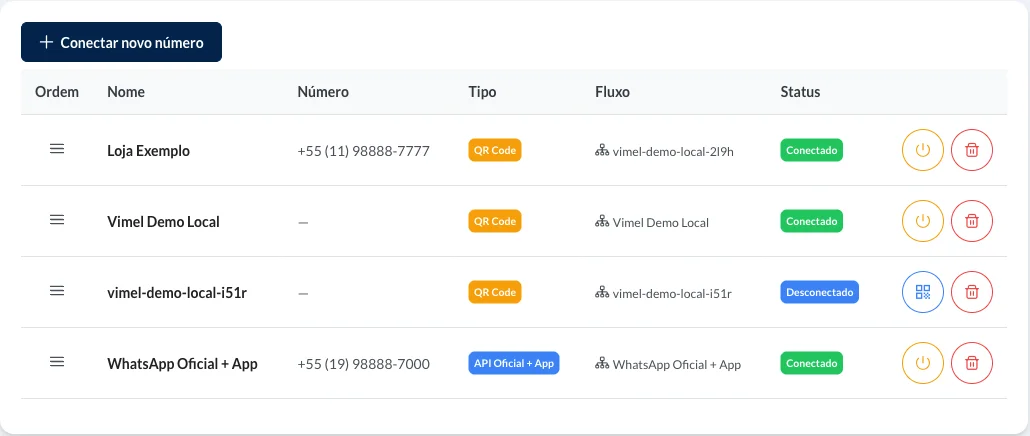
Instances live under Config. CRM, on the Conexões WhatsApp (WhatsApp connections) tab. The table shows each one's name, number, type and flow, and the Status column says whether it is Conectado (connected) or Desconectado (disconnected).
Pairing by QR code or by code applies to QR Code instances. The API Oficial (official API) types connect another way, outside this article.
Connecting a new number
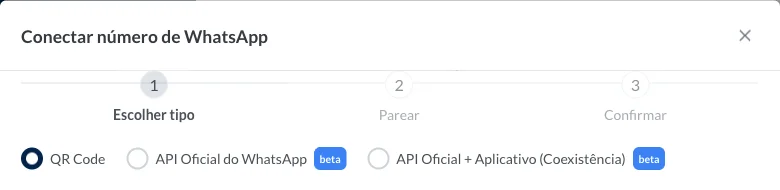
The Conectar novo número (connect new number) button opens a three-step dialog: Escolher tipo (choose type), Parear (pair) and Confirmar (confirm).
In step 1, choose QR Code. The same step has the Modelo de CRM (CRM template) and Fluxos (flows) fields; flows are optional, and with none chosen every active flow is applied. The Conectar e mostrar QR Code (connect and show QR code) button moves on to step 2, Parear.
Reconnecting a disconnected instance
A QR Code instance shown as Desconectado has a button with a QR code icon on its row. On a phone, where the table becomes a list of cards, the same button is called Ver QR Code (view QR code). It opens the dialog straight at the Parear step.
With the QR code
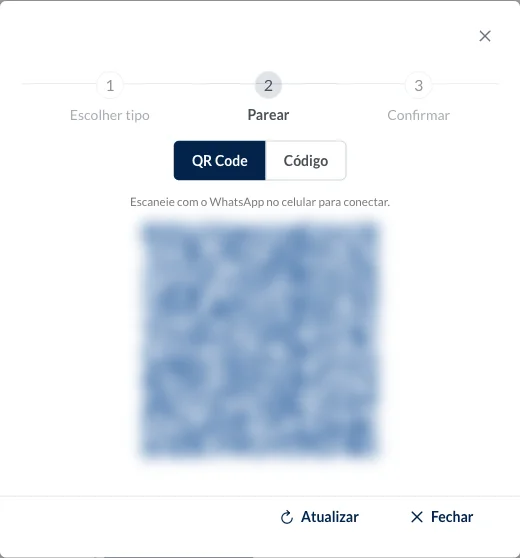
On a computer, the Parear step opens with QR Code selected. Scan the QR code with WhatsApp on the phone of the number you want to connect.
With a pairing code
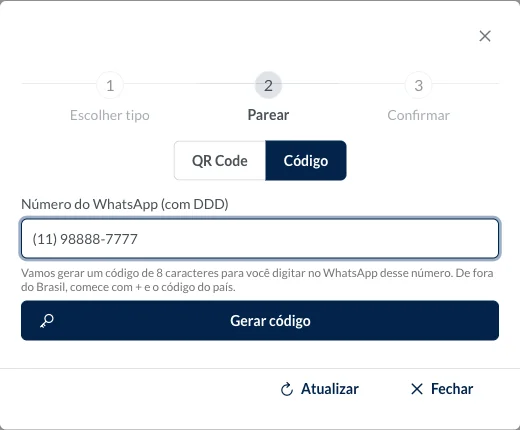
Select Código (code) and enter the Número do WhatsApp (com DDD) (WhatsApp number, with area code), which is the number being connected. The field formats the number as you type. For a number outside Brazil, start with + and the country code. Then, Gerar código (generate code).
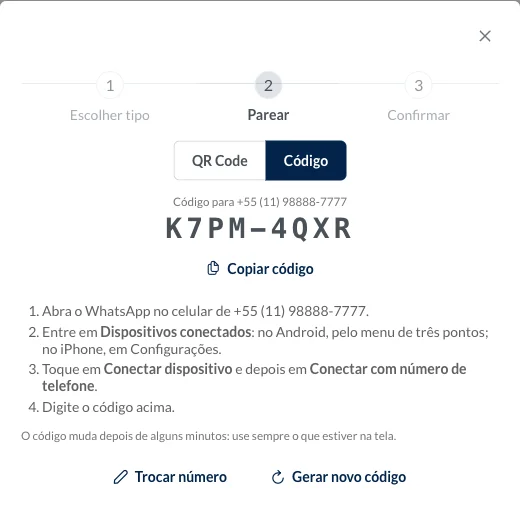
The screen shows which number the code is for, and the code in large type, in two groups of four characters. On that number's phone:
- Open WhatsApp.
- Go to Dispositivos conectados (Linked devices): on Android, from the three-dot menu; on iPhone, in Settings.
- Tap Conectar dispositivo (Link a device) and then Conectar com número de telefone (Link with phone number), at the bottom of the QR code scanning screen.
- Type the code on the Insira o código (Enter code) screen.
Copiar código (copy code) copies the eight characters without the hyphen, and the button changes to Copiado (copied).
The code changes after a few minutes, and the screen keeps up. Always type the one on the screen, not one you noted down earlier. If the number is wrong, Trocar número (change number) goes back to the field, with what you typed still there to correct; Gerar novo código (generate new code) asks for another one for the same number.
On a phone
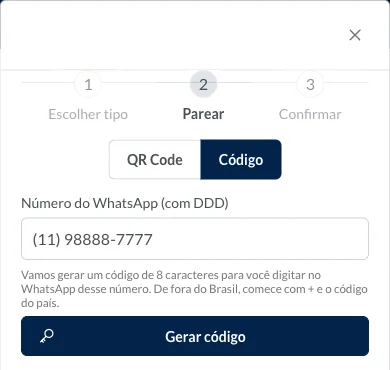
Opened on a phone, the Parear step already has Código selected. If you switch to QR Code there, the screen warns that a phone cannot read a QR code that is on its own screen.
After connecting
When the phone finishes pairing, the instance's row shows Conectado in the Status column.